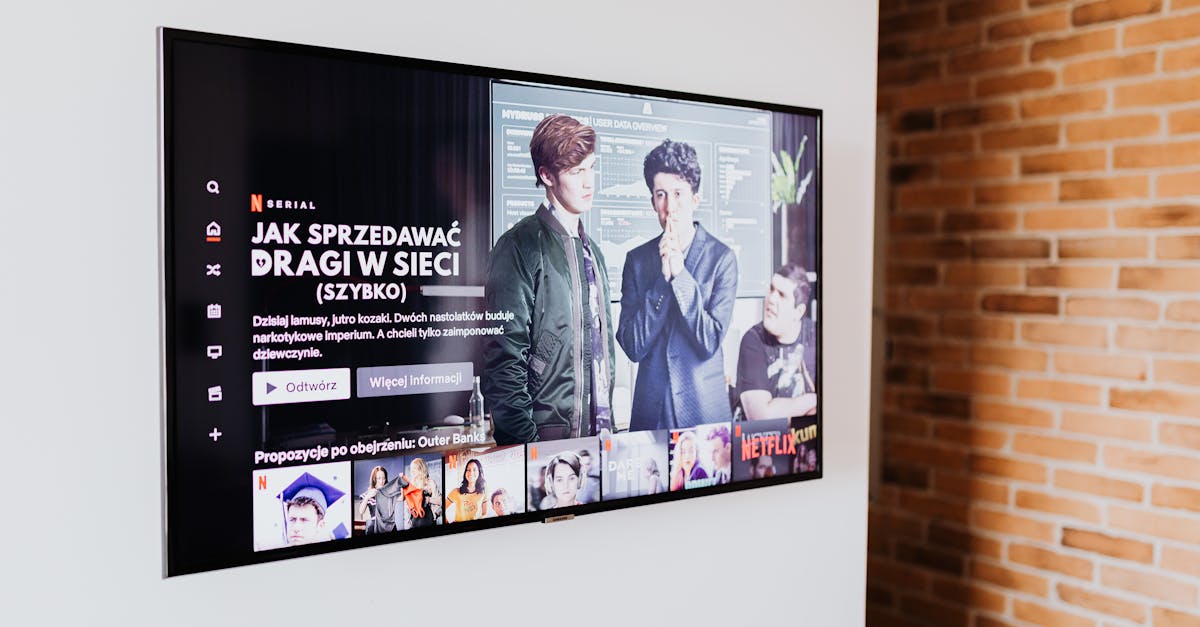
Why Your Smart TV Feels Slow (And What Actually Works to Fix It)
You bought a new smart TV, maybe even a top-of-the-line model with all the bells and whistles, expecting seamless streaming and lightning-fast app launches. But after a few months, or even weeks, it starts. The endless buffering. The apps that freeze. The remote that seems to do nothing for agonizing seconds. It’s frustrating, making your ‘smart’ TV feel anything but. You might blame your internet, or just assume all smart TVs are inherently slow. In my experience, the real culprits are often more nuanced than a simple Wi-Fi issue, and the solutions are far more effective than just rebooting it (though that helps sometimes).
This isn’t about blaming the manufacturers entirely; the reality is that the demands on smart TV hardware are constantly increasing. What was fast yesterday might feel sluggish today. But the good news is, you don’t have to live with a perpetually lagging TV. I’ve spent years dissecting and optimizing tech, and the same principles that apply to phones and computers often hold true for smart TVs. Most people overlook the fundamental issues that truly cripple performance, leading to a subpar viewing experience. Let’s dive into what’s really happening and how you can reclaim your TV’s speed.
Key Takeaways
- Your smart TV’s built-in processor and limited RAM are often the primary bottlenecks, not just your internet speed.
- Ditch most pre-installed ‘smart’ features and opt for a dedicated streaming device for superior performance and longevity.
- Regularly clear app caches, disable background refresh for unused apps, and factory reset annually to prevent software bloat.
- Optimize your home Wi-Fi and consider a wired connection to eliminate network-related slowdowns for a smoother streaming experience.
The Underpowered Brain: Why Your TV’s Specs Matter More Than You Think
One of the biggest misconceptions I encounter is that all smart TVs are created equal in terms of processing power. This couldn’t be further from the truth. Most integrated smart TV platforms, even on otherwise fantastic displays, are running on entry-level System-on-a-Chip (SoC) solutions. These SoCs are often designed with cost-effectiveness in mind, prioritizing basic functionality over raw speed and responsiveness. Think of it like this: your TV manufacturer is focused on the panel quality, the sound, and the general aesthetics. The ‘smart’ part is often an afterthought, a checkbox feature rather than a core competency.
In my experience, a typical smart TV might pack a quad-core processor running at a relatively low clock speed, coupled with anywhere from 1GB to 3GB of RAM. Sounds okay on paper, right? Not when you consider the operating system, multiple streaming apps, and background processes all competing for those limited resources. When you open Netflix, then jump to YouTube, then check a weather app, each action requires the processor to switch contexts, load data into RAM, and render interfaces. With insufficient hardware, this quickly leads to stuttering, slow loading times, and frustrating input lag from your remote.
The critical insight here is that you often can’t upgrade your TV’s internal hardware. So, while buying a more expensive TV might get you a slightly better SoC, the fundamental limitation of an integrated system remains. The smart TV’s ‘brain’ is almost always less powerful and less optimized than a dedicated streaming stick or box costing a fraction of the TV’s price. Understanding this limitation is the first step towards a genuine solution.
Offload the Work: The Case for a Dedicated Streaming Device
This is the single most impactful recommendation I can give: stop relying on your TV’s built-in smart features and invest in a dedicated streaming device. This might sound counterintuitive – why buy another box when your TV already has apps? Because those external devices (think Apple TV, Roku Ultra, Chromecast with Google TV, or a high-end Fire TV Stick) are purpose-built for streaming. They come with significantly more powerful processors, more RAM, and operating systems optimized purely for media consumption.
For example, an Apple TV 4K might run on an A15 Bionic chip, which is essentially a stripped-down iPhone processor. Compare that to the generic, low-power SoC in your TV. The difference in performance is night and day. Apps launch instantly, menus scroll smoothly, and buffering becomes a rarity (assuming good internet). These devices also tend to receive more frequent and longer-lasting software updates, keeping them fast and secure for years, whereas many smart TVs cease receiving updates after just a few years, leading to security vulnerabilities and app compatibility issues.
When I made this switch for my own family’s main TV, the complaints about slow streaming vanished overnight. Not only was the experience smoother, but the external device’s user interface was often cleaner and more intuitive. It’s a small investment (often under $100-$150) that fundamentally transforms your viewing experience, making your expensive TV feel truly smart. Plus, if you ever upgrade your TV, you simply plug in your trusted streaming device and carry over your optimized experience.
Declutter Your Digital Living Room: App Management and Background Processes
Just like your smartphone or computer, smart TVs accumulate digital clutter over time. Every app you install, even if you rarely use it, can consume valuable storage and, more importantly, RAM. Many smart TV operating systems allow apps to run in the background, refresh content, or even push notifications, all of which chew up precious resources and slow down the entire system.
The mistake I see most often is people just letting apps sit there, thinking out of sight, out of mind. But a dormant app isn’t always truly dormant. What changed everything for me was adopting an aggressive approach to app management on my smart TV (before I switched to a dedicated streaming device, and still relevant for that device).
Here’s what you should be doing regularly:
- Uninstall Unused Apps: Go through your app library and delete anything you haven’t touched in a month. This frees up storage and reduces the potential for background activity.
- Clear App Caches: Over time, streaming apps store tons of cached data (temporary files to speed up loading). This data can become corrupted or simply grow too large, bogging down the app and the system. Navigate to your TV’s settings (usually under Apps or Storage) and manually clear the cache for frequently used apps like Netflix, Hulu, YouTube, etc. Do this once a month for a noticeable difference.
- Disable Background App Refresh: If your TV allows it, find settings for ‘Background App Refresh’ or similar and turn it off for apps you don’t need constantly updating. This is less common on very basic smart TVs, but crucial on Android TV or Google TV platforms.
- Limit Notifications: App notifications (e.g., ‘New episode of X on Y!’) can also consume resources. Disable these for all but the most essential alerts.
These seemingly minor actions add up. A streamlined app environment means more RAM for the app you’re actually using, leading to a much snappier experience. It’s digital hygiene that directly impacts performance.
The Annual Refresh: Why a Factory Reset Isn’t Just for Emergencies
This might sound drastic, but I firmly believe in the annual (or bi-annual) factory reset for smart TVs that you rely on for streaming. Think of it as spring cleaning for your TV’s software. Over months and years, smart TV operating systems accumulate hidden files, configuration changes, lingering app data, and minor software glitches that can contribute to a gradual but noticeable slowdown.
Even with diligent app management and cache clearing, the underlying OS can become ‘bloated’ or less efficient. A factory reset wipes the TV’s internal storage clean, reinstalls the operating system to its default state, and often brings back that ‘new TV’ responsiveness. It’s like reinstalling Windows on an old PC; it just makes things feel fresh.
The Process:
- Backup Settings (if possible): Some advanced TVs allow you to backup certain picture or sound settings to a USB drive. Check your manual.
- Note Down Logins: Have a list of your streaming service logins handy, as you’ll need to re-enter them.
- Perform the Reset: Go into your TV’s settings, usually under
System,About, orPrivacy, and look forFactory Reset,Reset to Defaults, orErase All Data. Confirm the action. - Re-setup: You’ll go through the initial setup process again, connecting to Wi-Fi, agreeing to terms, and reinstalling your essential apps.
While it takes about 20-30 minutes of your time, a factory reset can breathe new life into a sluggish smart TV. It’s particularly effective for older models or those that have never been reset before. I’ve personally seen TVs go from painfully slow to perfectly usable after this step, delaying the need for an expensive upgrade.
Network Foundations: Optimizing Your Wi-Fi and Embracing Ethernet
While I maintain that the TV’s internal hardware is often the primary bottleneck for responsiveness, a slow or unstable network can certainly make your smart TV feel slow, especially when streaming high-bandwidth content like 4K HDR video. Many people assume their Wi-Fi is fine because their phone works, but smart TVs have unique network demands.
Here’s what I’ve learned about ensuring your TV has the best possible connection:
- The 5GHz Band is Your Friend: Most modern routers broadcast on two frequency bands: 2.4GHz and 5GHz. The 2.4GHz band offers greater range but is prone to interference and generally slower. The 5GHz band offers faster speeds and less interference, which is crucial for streaming. Ensure your TV is connected to your router’s 5GHz network. If you have a single Wi-Fi name, check your router settings to see if it automatically steers devices to the best band, or consider splitting your Wi-Fi into two distinct SSIDs (e.g.,
MyWi-Fi-2.4GHzandMyWi-Fi-5GHz). - Location, Location, Location: The closer your TV is to your Wi-Fi router, the better the signal. Walls, large furniture, and other electronics can degrade Wi-Fi quality. If your TV is far from the router, consider moving the router or investing in a mesh Wi-Fi system.
- Upgrade Your Router: If your router is more than 3-4 years old, it might be the weakest link. Newer Wi-Fi 6 (802.11ax) or Wi-Fi 6E routers offer significant improvements in speed, efficiency, and handling multiple devices.
- Embrace Ethernet: This is the gold standard for media streaming. If your TV (or dedicated streaming device) has an Ethernet port, use it. A wired connection eliminates Wi-Fi interference, provides consistent speeds, and generally has lower latency. Running a long Ethernet cable can be a hassle, but for your main entertainment hub, it’s often worth the effort. Powerline adapters are also an option if running a cable isn’t feasible, extending your wired network over your home’s electrical wiring.
Never underestimate the impact of a solid network connection. Even the fastest smart TV hardware will stutter if it can’t pull data fast enough. By optimizing your Wi-Fi or going wired, you eliminate a major variable that often contributes to a ‘slow TV’ experience.
Frequently Asked Questions
## Q: Is it true that clearing the cache on my smart TV helps with performance?
A: Yes, absolutely. Just like on a smartphone, apps on your smart TV store temporary data (cache) to speed up loading times. Over time, this cache can become bloated or corrupted, leading to slowdowns and app crashes. Regularly clearing the cache for frequently used apps can significantly improve their performance and the overall responsiveness of your TV. It’s a quick and effective maintenance step.
## Q: Why does my expensive smart TV feel slower than a cheap streaming stick?
A: This is a common and frustrating issue rooted in hardware choices. Your TV manufacturer prioritizes the display panel and overall aesthetics, often equipping the built-in smart platform with a relatively low-power processor and limited RAM to keep costs down. Dedicated streaming sticks or boxes (like an Apple TV or Roku Ultra) are purpose-built for streaming, featuring significantly more powerful SoCs and optimized operating systems, making them inherently faster and more responsive for app navigation and content playback, despite their lower price point.
## Q: How often should I factory reset my smart TV?
A: For most users who rely on their TV’s built-in smart features, I recommend a factory reset once every 12-18 months. This clears out accumulated software bloat, old app data, and minor glitches, restoring the TV to its ‘out-of-the-box’ performance. If your TV is particularly sluggish or you experience frequent app crashes, a reset can be done sooner. Remember to note down your app logins beforehand, as you’ll need to re-enter them.
## Q: Will buying a new, faster Wi-Fi router make my smart TV faster?
A: It can significantly help with streaming performance and loading times, especially for 4K content. A faster, more modern router (e.g., Wi-Fi 6) can provide a stronger, more stable signal, reduce interference, and handle multiple connected devices more efficiently. However, it won’t fix underlying issues with your TV’s processor or RAM if the problem is app responsiveness rather than pure streaming speed. For optimal results, use a 5GHz connection or, even better, an Ethernet cable if your TV has the port.
## Q: Is there a way to prevent smart TV apps from running in the background?
A: This depends on your specific smart TV’s operating system. Some platforms, like Android TV or Google TV, offer settings to manually force-stop apps or disable background refresh for individual applications. Other simpler smart TV OSes may not provide this granular control. Check your TV’s settings under Apps, Applications, or Developer Options to see what management options are available. Limiting background activity can free up resources and improve overall speed.
Ultimately, a slow smart TV doesn’t have to be a permanent fixture in your home. By understanding the true causes – often underpowered internal hardware and software bloat – and applying these targeted solutions, you can dramatically improve your viewing experience. Whether it’s offloading the ‘smart’ work to a dedicated device, diligently managing your apps, refreshing your system annually, or optimizing your network, each step contributes to a smoother, more enjoyable digital living room. Don’t settle for sluggishness; take control of your TV’s performance and get back to enjoying your content, not fighting with your tech.
Written by Elias Vance
Hardware reviews, product teardowns, engineering insights
A former R&D engineer, Elias possesses an uncanny ability to dissect new hardware and explain its inner workings.
You Might Also Like

Why Your Car Stereo Has No Bass (And What Actually Works for Deep, Punchy Sound)
Struggling with weak car audio bass? Learn the hidden reasons your stereo lacks punch and discover real solutions for deep, impactful low end.
Why Your New Phone Charger Feels Slow (And What Actually Works for Real Speed)
Discover why your new phone charger might be underperforming and the concrete steps to achieve true fast charging, not just advertised speeds.

Why Your Car Stereo Sounds Muddy (And What Actually Works for Real Clarity)
Is your car audio lacking clarity? Elias Vance explains why factory systems often sound muddy and shares expert tips to achieve crisp, clear sound.