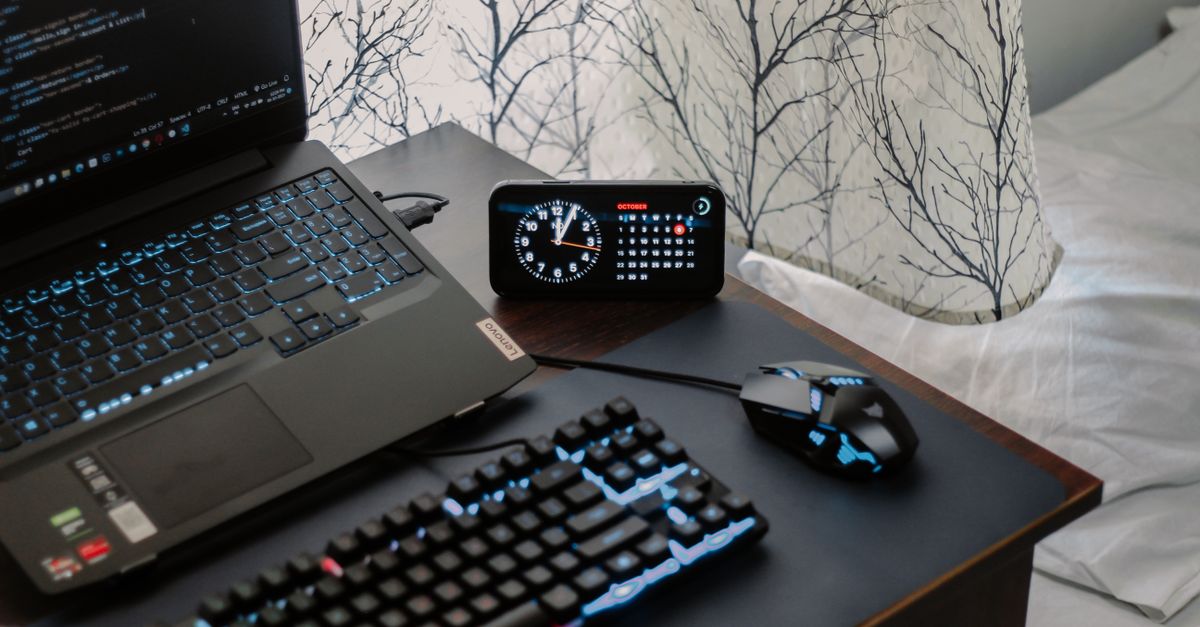
Why Your New Gaming Mouse Feels 'Off' (And What Actually Works to Fix It)
You just unboxed that sleek, high-DPI gaming mouse you’ve been eyeing, the one with the glowing RGB and a sensor boasting thousands of CPI. You plugged it in, fired up your favorite competitive shooter, and… something feels wrong. The aim is floaty, inconsistent, or just not as precise as you expected. You blame the mouse, the game, or even yourself, but the truth is, a high-performance gaming mouse isn’t a magic bullet. It’s a precision instrument that needs calibration, not just to your system, but to your hand and playstyle. The mistake I see most often is people treating a new mouse like a simple plug-and-play upgrade, when in reality, it requires a thoughtful, methodical setup to unlock its true potential. Most online advice stops at ‘adjust your DPI,’ which is only scratching the surface. What changed everything for me, and for countless competitive players I’ve coached, was understanding the interplay between hardware, software, and human factors.
Key Takeaways
- Your new gaming mouse likely feels ‘off’ due to unoptimized software settings, not hardware failure.
- True sensitivity isn’t just DPI; it’s a critical synergy between mouse DPI, in-game sensitivity, and Windows pointer speed.
- Mouse acceleration must be disabled universally for consistent, predictable aiming across all applications.
- Invest in a high-quality, clean mousepad that complements your sensor and grip style.
- Grip style and mouse ergonomics significantly impact comfort and aiming precision; choose wisely.
The Sensitivity Triad: DPI, In-Game, and Windows Pointer Speed
One of the most common misconceptions about gaming mouse performance is that ‘higher DPI equals better.’ This couldn’t be further from the truth. In my experience, chasing ultra-high DPI numbers often leads to jittery, imprecise aiming if not properly balanced with other settings. The real magic happens when you understand the sensitivity triad: the intricate relationship between your mouse’s DPI (Dots Per Inch), your in-game sensitivity setting, and your operating system’s (usually Windows) pointer speed. Neglecting any one of these elements guarantees a suboptimal experience.
Your mouse’s DPI is merely how many pixels the cursor moves for every inch you move the mouse physically. A higher DPI means the cursor moves further for the same physical hand movement. However, most modern gaming sensors are incredibly accurate even at lower, native DPI settings (typically 400, 800, or 1600 DPI). Many pros, including myself, prefer lower native DPIs (e.g., 400 or 800) because these are often the ‘sweet spots’ where the sensor performs best with minimal interpolation or error. The mistake I often see is users cranking their mouse to 3200+ DPI and then trying to compensate by lowering their in-game sensitivity to absurdly low values, creating an inconsistent and often laggy feel.
Here’s the critical part: Windows pointer speed. By default, Windows sets this to the 6th notch out of 11. This is the only setting where a 1:1 pixel-to-sensor movement is achieved without any software scaling or interpolation. Moving it higher or lower introduces pixel skipping or artificial acceleration, which are absolute poison for precision aiming. So, always keep your Windows pointer speed at the 6th notch. Seriously, check it now. You’d be surprised how many people overlook this.
Once Windows pointer speed is locked, your actual ‘effective’ sensitivity comes down to DPI multiplied by in-game sensitivity. For competitive games, the goal is often to find an eDPI (effective DPI) that allows for full 360-degree turns within your comfortable mousepad space, while still providing micro-adjustment precision. In my experience, many players start too high. Begin with a lower DPI (400 or 800) in your mouse software, keep Windows pointer speed at the 6th notch, and then slowly increase your in-game sensitivity until you find a comfortable balance. What worked for me was using an online eDPI calculator and aiming for a value between 800 and 1600 for tactical shooters, adjusting as needed for faster-paced titles. The key is to make small, iterative changes and test them rigorously.
The Unforgivable Sin: Mouse Acceleration and Angle Snapping
If your aim feels inconsistent, like it’s fighting against you, there’s a 99% chance you have some form of mouse acceleration enabled. This is the single most destructive setting for precision aiming, and it’s a trap new users fall into constantly. Mouse acceleration means that the faster you move your mouse, the further your cursor travels relative to the physical distance. While it might seem helpful for desktop use (allowing quick across-screen sweeps with minimal physical movement), it’s catastrophic for muscle memory in gaming. Your aim should be a direct, predictable translation of your physical hand movement, every single time.
There are multiple places where mouse acceleration can rear its ugly head, and you need to disable it everywhere:
- Windows Pointer Precision: This is the most infamous culprit. Go to
Control Panel > Hardware and Sound > Mouse > Pointer Optionsand uncheck ‘Enhance pointer precision.’ This is Windows’ built-in mouse acceleration. It must go. - Mouse Software/Drivers: Many gaming mouse brands (Logitech, Razer, SteelSeries, etc.) include their own acceleration settings in their dedicated software. Dive deep into these settings and ensure any ‘acceleration,’ ‘deceleration,’ or ‘angle snapping’ features are completely off. Angle snapping, while less common, attempts to smooth out your mouse movements into straight lines, which is equally detrimental to organic, precise aiming.
- In-Game Settings: Some older or less optimized games might have their own form of mouse acceleration built into their engine. Check the game’s settings, often under ‘Controls’ or ‘Mouse,’ and disable anything related to ‘mouse acceleration’ or ‘raw input’ (you usually want raw input enabled if the game offers it, as it bypasses Windows settings, but always double-check the specifics for that particular game). My rule of thumb: if it sounds like it’s trying to ‘help’ your mouse movement, disable it.
In my competitive gaming career, the moment I universally disabled all forms of mouse acceleration, my aim consistency shot through the roof. It felt clunky for about an hour as my muscle memory reset, but the long-term gains in predictability and precision were invaluable. This is not optional; it’s fundamental.
The Overlooked Foundation: Your Mousepad
You’ve spent $100+ on a high-end mouse, but are you still using that cheap, worn-out mousepad from a decade ago? This is a mistake I see countless times. Your mousepad is not just an aesthetic accessory; it’s the surface your sensor tracks on, and it directly impacts the feel, glide, and precision of your mouse movements. A premium optical sensor on a terrible surface is like putting racing tires on a gravel road – you’re just not going to get the performance you paid for.
Mousepads come in various materials and sizes, each offering different characteristics:
- Cloth Pads: These are the most common. They offer a good balance of speed and control. Different weaves and densities result in varying friction. A tightly woven, smooth cloth pad (like many Esports-grade pads) offers a faster glide, while a coarser, softer pad offers more control and stopping power. For most players, a high-quality cloth pad with a stitched edge is the ideal starting point.
- Hard Pads: Made of plastic or aluminum, hard pads offer extremely fast glide with minimal friction. This can be great for flick shots and fast movements, but they offer less stopping power and can be noisy. They also tend to wear down mouse feet faster.
Size matters. A small mousepad forces you to lift and reposition your mouse frequently, disrupting flow and accuracy, especially at lower sensitivities. Invest in a large or extra-large mousepad. You want ample space for sweeping movements without running off the edge. In my experience, going from a standard 12-inch pad to an 18-inch or 24-inch ‘desk mat’ size was transformative for low-DPI gaming.
Condition is crucial. A dirty, frayed, or uneven mousepad will wreak havoc on your sensor’s tracking. Dust, crumbs, and accumulated grime can cause inconsistent tracking or even make the sensor ‘skip.’ Regularly clean your cloth mousepad (a gentle hand wash with mild soap and air dry works wonders) and replace it when it shows significant wear. The difference a fresh, clean, high-quality mousepad makes is often more noticeable than a small DPI tweak.
Grip Style and Ergonomics: The Unsung Heroes of Comfort and Control
This is where the ‘feels off’ sensation often stems from: a mismatch between your natural grip style and the ergonomics of your new mouse. There’s no single ‘best’ grip, but understanding yours is paramount to finding a mouse that truly clicks with your hand. The three main grip styles are:
- Palm Grip: Your entire palm rests on the mouse body, and your fingers lie flat. This grip offers stability and comfort for extended sessions but can be slower for precise micro-adjustments. Palm grippers typically prefer larger, ergonomically shaped mice with a higher hump.
- Claw Grip: Your palm rests on the back of the mouse, but your fingers are arched in a ‘claw’ shape, with only the fingertips making contact with the buttons. This offers a good balance of stability and dexterity, allowing for quicker finger-based micro-adjustments. Claw grippers often prefer medium-sized mice with a pronounced hump towards the rear.
- Fingertip Grip: Only your fingertips make contact with the mouse, and your palm doesn’t touch the mouse body at all. This offers maximum dexterity and quick, small movements, but less stability. Fingertip grippers generally prefer smaller, lighter, flatter mice.
I personally use a hybrid claw/fingertip grip, which means I look for lighter mice with a slightly aggressive hump and a shape that tapers in the middle. The mistake I made early on was buying mice based purely on sensor specs or recommendations without considering how they’d actually feel in my hand. It led to hand fatigue, cramps, and inconsistent aiming.
Consider the weight of the mouse as well. Lighter mice (under 80g) are often preferred by competitive players for quick flick shots and reduced fatigue over long sessions. Heavier mice (over 100g) offer more stability but require more effort to move.
Take the time to understand your grip and hand size. Research mice that are known to accommodate that style. Watch reviews that discuss shape and comfort, not just sensor specs. Sometimes, the ‘perfect’ mouse for you might not be the most expensive or feature-rich, but simply the one that fits your hand like an extension of your arm. What changed everything for me was trying out several different shapes and sizes from friends before committing to a purchase. Don’t be afraid to return a mouse if the ergonomics just aren’t working for you; it’s an investment in your performance and comfort.
Mouse Feet and Cable Management: The Friction Fighters
Often overlooked, the small details can significantly impact your mouse’s feel. Your mouse feet, or ‘skates,’ are the little Teflon (PTFE) pads on the underside of your mouse that allow it to glide smoothly. Stock mouse feet are often decent, but they can wear down over time, become scratched, or be of lower quality on budget mice. Worn or cheap feet introduce unnecessary friction and drag, making your movements feel inconsistent and sluggish. Upgrading to aftermarket PTFE feet (often 100% virgin PTFE) is a common, inexpensive modification that can dramatically improve glide performance. Look for thicker, rounded-edge feet for the smoothest experience.
Similarly, cable management might seem trivial, but a stiff, dragging mouse cable can be a constant source of frustration. If your mouse isn’t wireless, a ‘mouse bungee’ is a game-changer. This simple device holds your mouse cable aloft, preventing it from snagging on the edge of your desk, tangling with other peripherals, or adding drag to your movements. It effectively makes your wired mouse feel almost wireless, providing unrestricted movement. I refused to believe the hype around mouse bungees for years, thinking they were unnecessary. The moment I bought one, I realized how much subtle drag my cable was actually causing, and it immediately smoothed out my aim.
For wireless mice, ensure your dongle is placed as close to your mousepad as possible, ideally with a USB extension cable. This minimizes interference and ensures the lowest possible latency. Also, regularly check the battery level; a dying battery can subtly increase latency and introduce input lag, making your mouse feel ‘off’ without an obvious visual cue.
Troubleshooting and Iterative Adjustment: The Path to Perfection
Even after addressing all the above points, finding your perfect setup is often an iterative process. Rarely does everything click into place immediately. What I always recommend is a structured troubleshooting approach:
- Isolate the Issue: Is the ‘off’ feeling specific to one game, or across all applications? If it’s one game, dive into that game’s specific settings. If it’s everywhere, start with Windows and mouse software settings.
- One Change at a Time: Resist the urge to tweak multiple settings simultaneously. Change one variable (e.g., DPI, in-game sensitivity, mouse acceleration, a different mousepad), test it rigorously, and then evaluate the impact. This allows you to understand what’s actually making a difference.
- Practice: After any significant changes, spend dedicated time in a training range or aim trainer (like Aim Lab or Kovaak’s FPS Aim Trainer) before jumping into competitive matches. This allows your muscle memory to adapt without the pressure of live play. Focus on smooth tracking and consistent flicking.
- Review and Reflect: Pay attention to how your hand and arm feel. Are you experiencing fatigue? Are your movements natural? Record gameplay and watch for inconsistencies in your aim. Sometimes, a fresh pair of eyes (even your own, post-match) can spot issues you missed in the heat of the moment.
The journey to a perfectly tuned gaming mouse setup is personal. What works for one player might not work for another. In my experience, the players who consistently perform best are those who are meticulous about their gear and take the time to understand and optimize every variable. Don’t settle for ‘off’; dedicate the time to dial in your precision instrument, and your performance will thank you for it.
Frequently Asked Questions
What is eDPI and why is it important?
eDPI (Effective Dots Per Inch) is a crucial metric that combines your mouse’s hardware DPI setting with your in-game sensitivity multiplier. It’s calculated as DPI * in-game sensitivity. This metric provides a standardized way to compare and communicate true sensitivity across different games and setups, making it easier to find and replicate your preferred aiming feel.
Should I use a high or low DPI for gaming?
Generally, lower native DPI settings (e.g., 400 or 800 DPI) are preferred by competitive gamers. These often represent the sensor’s optimal performance range with minimal interpolation. You then adjust your in-game sensitivity to achieve your desired cursor speed. A high DPI (3200+) can lead to jitter and loss of precision if not carefully managed.
Why does my mouse feel inconsistent even after changing DPI?
Inconsistency is often caused by enabled mouse acceleration (like Windows’ ‘Enhance pointer precision’), an unoptimized Windows pointer speed (it should be on the 6th notch), or a poor-quality/dirty mousepad. Ensure all acceleration is off, Windows pointer speed is at the default 6th notch, and your mousepad is clean and suitable for your sensor.
How often should I clean or replace my mousepad?
For optimal performance, a cloth mousepad should be cleaned every few weeks or months, depending on usage and environment. Hand washing with mild soap and air drying is effective. Replace your mousepad when it shows significant wear, fraying, or has developed uneven spots that affect glide, typically every 1-2 years for heavy users.
What’s the best mouse grip for gaming?
There’s no single ‘best’ grip; it’s highly personal. The three main styles are palm, claw, and fingertip. Understanding your natural grip (which parts of your hand touch the mouse) is crucial. Once you know your grip, you can select a mouse shape and size that ergonomically supports it, leading to better comfort and control. Experimentation is key.
Is a wireless gaming mouse as good as a wired one?
Modern wireless gaming mice have advanced significantly and often perform on par with, or even surpass, wired mice in terms of latency and reliability. Technologies like Logitech’s LIGHTSPEED, Razer’s Hyperspeed, or SteelSeries’ Quantum 2.0 Wireless offer imperceptible latency. The main benefits are freedom of movement and reduced cable drag, but they require battery management. Ensure your wireless dongle is close to the mouse for optimal performance.
Your new gaming mouse is a tool, not a solution. By meticulously optimizing the sensitivity triad, eliminating destructive software settings, investing in a proper mousepad, choosing the right ergonomics, and managing the small friction points, you can transform that ‘off’ feeling into a seamless extension of your will. Don’t let default settings or common misconceptions hold back your performance. Take the time to fine-tune your setup, and you’ll find a new level of precision and control that truly enhances your digital experience. Start by checking your Windows pointer speed and disabling any acceleration—those two changes alone will likely make a world of difference.
Written by Elias Vance
Hardware reviews, product teardowns, engineering insights
A former R&D engineer, Elias possesses an uncanny ability to dissect new hardware and explain its inner workings.
You Might Also Like

Why Your New Ultrawide Monitor Feels 'Off' (And What Actually Fixes It)
Just got an ultrawide monitor but it feels 'off'? Elias Vance explains why your settings are likely misconfigured, and how to fix scaling, aspect ratio, and game support for a truly immersive experience.
Why Your New Ultrawide Monitor Feels 'Off' (And What Actually Fixes It)
Just got an ultrawide? If it feels weird, you're not alone. Elias Vance explains the common pitfalls and actual fixes for ultrawide monitor setup.

Why Your New Keyboard Feels Gimmicky (And What Actually Works for Real Typing Bliss)
Don't fall for marketing hype. Discover why many new keyboards disappoint and the overlooked factors that truly enhance your typing experience.